When designing modern digital products, moving from strict rectangular displays to unbounded physical spaces requires a fundamental technical shift. Mastering Spatial UI Design empowers front-end developers, UX engineers, and product designers to build intuitive, layered interfaces that exist dynamically within a user’s physical environment. Transitioning away from flat screens requires rethinking interaction models, typographic hierarchy, spatial depth calculations, and hardware ergonomics.
In this technical guide, we break down the architectural paradigms, mathematical depth models, dynamic glassmorphism rendering pipelines, and interaction standards required to evolve your software design system from two-dimensional planes into fully realized three-dimensional volumetric spaces.
Understanding the Core Principles of Spatial UI Design
At its foundation, two-dimensional user experience relies on absolute pixel boundaries, fixed viewport viewports, and deterministic touch or pointer events. In contrast, spatial computing environments introduce volumetric elements, infinite spatial canvases, physical lighting simulation, and contextual orientation vectors. Implementing a functional system for Spatial UI Design means designing for an interface that reacts directly to spatial coordinates, user position, real-world occlusion, and ambient lighting conditions.
To establish clarity in three-dimensional space, digital surfaces must obey physical optical rules. Instead of static solid backgrounds, spatial surfaces utilize translucent materials—frequently referred to as spatial glass—which reflect ambient illumination from the user’s real environment while keeping underlying physical objects partially visible. This visual connection prevents user disorientation and anchors virtual elements within the immediate physical world.
Furthermore, input mechanics shift dramatically. Instead of a mouse cursor bound to absolute screen coordinates or direct finger contact on a glass panel, interaction models rely on eye-gaze tracking, indirect hand gestures, volumetric spatial anchors, and spatial audio feedback. Understanding these core input paradigms ensures that spatial interfaces feel light, reactive, and physically comfortable during extended computing sessions.
2D Flat Viewports vs 3D Spatial Computing Paradigms
To successfully migrate existing design tokens, components, and layout engines, tech leads and product architects must evaluate how fundamental interface elements change across dimensions. Below is an engineering comparison between traditional web/mobile software architecture and volumetric spatial software architecture.
| Design Metric | Flat 2D Web & Mobile UI | 3D Volumetric Spatial UI |
|---|---|---|
| Canvas Area | Fixed viewport bounds (e.g., 1920×1080) | Infinite 360-degree physical environment |
| Layout Coordinate System | X and Y box-model layout engine | X, Y, and Z spatial metric coordinates (meters/mm) |
| Visual Hierarchy | Font weights, colors, 2D drop-shadows | Z-depth spacing, specularity, volume, dynamic scale |
| Primary Input Vector | Mouse click, touch tap, keyboard focus | Gaze tracking, micro hand gestures, voice commands |
| Lighting & Material Engine | Flat CSS renders, static gradients | Real-time dynamic lighting, material translucency |
| Ergonomic Constraints | Thumb reach zones, wrist posture | Neck rotation angles, optical focal depth, arm strain |
7 Steps to Transform Flat Workflows into Spatial UI Design
Building scalable spatial components requires a structured, repeatable methodology. Follow these seven actionable steps to transition your standard design component library into a high-performance spatial system.
1. Redefining Viewport Limits into Infinite Workspaces
Traditional responsive layouts adapt to distinct screen breakpoints such as mobile, tablet, and desktop monitors. In a spatial layout engine, the canvas is unbounded. Designers must construct application windows that float gracefully in physical space, anchored either relative to the display headset (head-locked), relative to a specific spot in the room (world-locked), or attached to physical surfaces like desks or walls (body/surface-locked).
To avoid overwhelming the user’s field of view (FOV), primary workspace windows should be positioned within a comfortable central viewing cone (roughly 30 to 60 degrees horizontally). Secondary navigation panels, context menus, and toolbars should float adjacent to main panels on slightly curved spatial planes, ensuring information remains within comfortable head-turning radiuses without requiring excessive body movement.

2. Establishing a Spatial Grid and Z-Axis Depth Hierarchy
In standard web development, the CSS `z-index` property simply dictates draw order on a flat render layer. In modern Spatial UI Design, depth is a physical measurement typically calculated in millimeters or meters relative to the user’s optical focal point.
Create a structured Z-axis depth token system that dictates panel elevation:
- Base Canvas Plane (0mm depth offset): Primary content containers, main document views, and spatial web pages.
- Interactive Component Plane (+20mm offset): Clickable buttons, form inputs, card containers, and primary navigation tabs that float slightly ahead of the parent window.
- Modal & Alert Plane (+50mm offset): System alerts, confirmation overlays, and urgent contextual menus that push visually forward to capture immediate user attention.
- Background Context Plane (-30mm offset): Subordinate media viewports, decorative spatial backdrops, and secondary reference panels.
Structuring Depth and Z-Axis Hierarchy in Spatial UI Design
Implementing effective visual hierarchy within Spatial UI Design relies heavily on dynamic lighting and distance perception. When components move closer to the user on the Z-axis, they should subtly increase in physical visual scale while casting soft, real-time spatial drop shadows onto the interface panels sitting behind them. This optical feedback reinforces spatial relationships, making user interactions intuitive and visually clear.
Avoid placing interface elements too close to the human eyes. Placing virtual components closer than 0.5 meters triggers vergence-accommodation conflict, causing visual strain and eye fatigue. Keep primary interactive elements placed between 1.2 meters and 2.5 meters away from the user coordinate origin for optimal optical comfort.
3. Designing Dynamic Glassmorphism and Materials
Solid, opaque panels block the physical world, making software feel intrusive and isolating. Spatial systems utilize dynamic glass materials that blend blur effects, opacity controls, and edge specular highlights. This translucency allows real-world lighting, furniture, and physical environments to pass subtly through interface cards.
Ready to Build, Fix, or Scale Your Website?
One Code Stream engineers high-speed, conversion-focused websites, custom web applications, and e-commerce solutions for global businesses. Let’s turn your vision into measurable digital growth.
To ensure content remains legible regardless of real-world backgrounds (such as bright windows or dark walls), UI panels must dynamically react to environment luminance. Modern rendering engines apply real-time background subtraction, blur shaders, and dynamic text contrast adjustments to ensure dark text automatically switches to light text when floating over dark real-world conditions.
4. Building Indirect and Direct Gestural Interaction Models
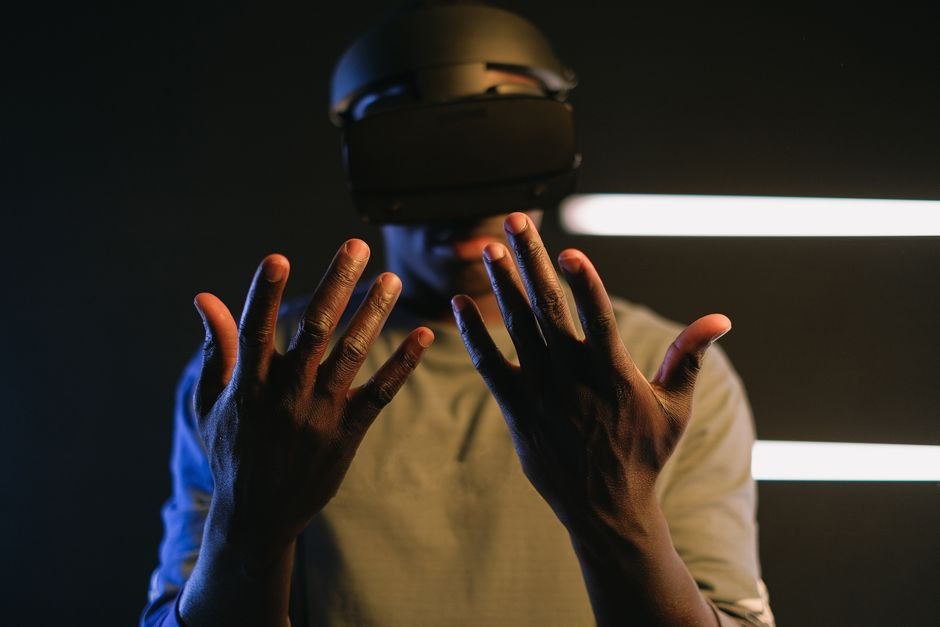
Input in spatial computing splits into two major categories: indirect manipulation and direct manipulation. Designing components that support both interaction methods seamlessly is critical for professional spatial applications.
- Indirect Interaction (Gaze + Micro-gesture): The user looks at an element to focus it (gaze target), then performs a subtle finger pinch micro-gesture with their hands resting comfortably on their lap. This is the primary lower-fatigue input method for long sessions.
- Direct Interaction (Physical Spatial Touch): The user reaches forward with their physical finger and directly taps a virtual 3D element floating in space. Direct interaction should provide immediate spatial audio cues and visual panel compression to simulate tactile resistance.
5. Implementing Eye Tracking and Hover Focus Feedback
Because eye movement is significantly faster and less deliberate than mouse movement, hover states in a spatial system must be subtle and responsive. When designing focus states triggered by gaze tracking, avoid sudden layout shifts or loud sound effects that induce cognitive overload.
Instead, apply a continuous material brightness increase (e.g., boosting background glass opacity from 15% to 25%), subtly expand the target’s bounding box padding, or render a soft specular edge glow. This confirms to the user that their eye gaze has successfully targeted an interactive object before they execute a selection gesture.
6. Incorporating Spatial Audio and Ergonomic Comfort Zones
Visual cues alone are insufficient in a 360-degree spatial environment where elements can float outside the user’s primary field of view. Spatial audio engine integrations play an essential role in guiding user orientation and confirming input actions.
When an off-screen notification arrives, playing a directional 3D audio ping localized precisely to the spatial coordinates of the incoming window allows the user to naturally turn their head toward the sound source. Additionally, subtle tactile audio ticks should trigger on gesture pinch, scroll end-bounds, and panel drag events to make virtual interactions feel concrete.
7. Prototyping Volumetric Layouts with Modern WebXR Frameworks
Transitioning design teams from 2D vector applications like Figma into real spatial environments requires leveraging software tools capable of spatial output. Web developers can utilize open standards like the W3C WebXR Device API Specification alongside declarative rendering libraries like Three.js Documentation or React Three Fiber.
Building functional web prototypes early allows engineers to validate spatial scale, text legibility, frame rates, and physical arm comfort directly inside hardware headsets, preventing costly visual re-designs later in the development cycle.
Technical Implementation: WebXR and 3D Vector Transformations
Below is a production-ready example demonstrating how front-end engineers can construct an interactive, volumetric spatial window card utilizing declarative WebXR spatial coordinate principles in JavaScript and Three.js. This sample sets up dynamic gaze detection hover reactions, Z-depth spatial positioning, and material translucency shaders.
import * as THREE from 'three';

// 1. Initialize Spatial Scene & Camera Origin
const scene = new THREE.Scene();
const camera = new THREE.PerspectiveCamera(75, window.innerWidth / window.innerHeight, 0.1, 1000);

// 2. Define Spatial UI Panel Geometry (Width: 0.8m, Height: 0.5m, Curvature Depth)
const panelGeometry = new THREE.PlaneGeometry(0.8, 0.5, 32, 32);

// 3. Create Translucent Glass Material Pipeline
const spatialGlassMaterial = new THREE.MeshPhysicalMaterial({
  color: 0xffffff,
  transparent: true,
  opacity: 0.35,
  roughness: 0.1,
  metalness: 0.1,
  transmission: 0.6, // Glass transparency
  ior: 1.2,          // Index of Refraction for light bending
  side: THREE.DoubleSide
});

// 4. Instantiate Spatial Mesh Card
const spatialCard = new THREE.Mesh(panelGeometry, spatialGlassMaterial);

// Position Card in User's Comfortable Spatial Zone (1.5 meters ahead, slightly elevated)
spatialCard.position.set(0, 0.1, -1.5);
scene.add(spatialCard);

// 5. Add Dynamic Gaze Focus Hover Interaction Handler
const raycaster = new THREE.Raycaster();
const gazePointer = new THREE.Vector2(0, 0); // Center gaze vector

function checkGazeFocus() {
  raycaster.setFromCamera(gazePointer, camera);
  const intersects = raycaster.intersectObject(spatialCard);

  if (intersects.length > 0) {
    // Elevate panel forward on Z-axis and increase specular glow on hover
    spatialCard.position.z = THREE.MathUtils.lerp(spatialCard.position.z, -1.4, 0.1);
    spatialGlassMaterial.opacity = 0.55;
  } else {
    // Return panel to base resting Z-depth position
    spatialCard.position.z = THREE.MathUtils.lerp(spatialCard.position.z, -1.5, 0.1);
    spatialGlassMaterial.opacity = 0.35;
  }
}

// Main Render Loop
function animateSpatialFrame() {
  requestAnimationFrame(animateSpatialFrame);
  checkGazeFocus();
  // Renderer context execution here...
}
animateSpatialFrame();
Common Pitfalls in Volumetric Interface Design
While moving software into three-dimensional space offers massive canvas expansion, common technical mistakes can easily disrupt usability and induce user fatigue. Engineering teams should actively avoid these design traps:
- Visual Clutter and Over-layering: Floating too many translucent windows simultaneously destroys spatial depth perception and causes extreme cognitive overload. Keep active background windows blurred and dimmed.
- Ignoring Physical Motion and Head Tracking: Locking full application windows directly to the user’s eye gaze creates jarring visual motion (head-locking). Always implement smooth spring-damper interpolation so interface panels float naturally behind gaze changes.
- Inadequate Contrast and Dynamic Lighting: Relying on thin text fonts or subtle color highlights across unknown physical backgrounds compromises readability. Ensure typography utilizes dynamic dropshadows or dark backing plates to preserve visual clarity.
- Ergonomic Overhead (“Gorilla Arm” Effect): Requiring users to keep their arms extended in front of their chest to tap interactive elements leads to physical exhaustion within minutes. Default all primary inputs to subtle gaze-and-pinch indirect micro-gestures.
Summary: Building the Future of Volumetric Software
Transitioning from flat 2D viewport design systems into volumetric spatial computing is an incredible evolution for digital product development. By adopting depth systems, real-time lighting pipelines, gaze-and-pinch input structures, and ergonomic focal guidelines, teams can construct spatial software that feels effortlessly natural, physically comfortable, and infinitely expandable.
To explore more deep-dive technical engineering tutorials, software layout architecture breakdowns, and front-end code guides, explore the latest development resources available on One Code Stream.