
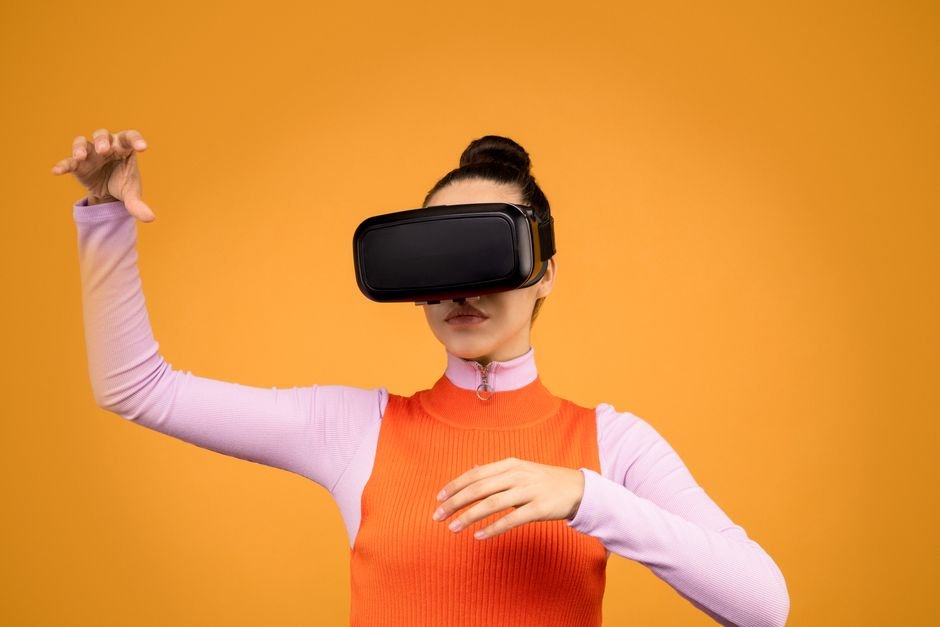
Designing an intuitive spatial computing UI requires a fundamental departure from flat canvas paradigms toward volumetric visual environments. As hardware ecosystems evolve beyond fixed screens, software engineers and product designers must rethink spatial ergonomics, dynamic lighting, real-time depth hierarchies, and gesture-driven interactions to maintain user focus without causing physical fatigue.
Traditional responsive design relies on breakpoints, pixels, and fixed viewports. In contrast, volumetric interfaces inhabit an unbounded physical workspace. Users navigate digital artifacts anchored to physical walls, floating in mid-air, or dynamically interacting with real-world geometry. Building these experiences demands mastery of multi-modal inputs, real-time spatial raycasting, and strict performance targets to maintain visual fidelity while preventing simulator sickness.
In this technical guide, we will analyze the visual physics, structural frameworks, and optimization workflows required to build production-grade volumetric interfaces. Whether you are targeting WebXR runtimes, native visionOS applications, or Unity-driven spatial engines, these patterns provide the foundation for scalable 3D interaction design.
Core Foundations of Spatial Computing UI
To construct a robust spatial computing UI, developers must address how human visual systems process depth, focal distance, and parallax. When digital objects are embedded within a physical environment, several physical constraints dictate how components should render and respond to user posture.
1. Spatial Anchoring and Object Persistence
In volumetric design, UI elements exist in world space rather than screen space. Content positioning falls into three primary anchoring modes:
- World-Locked Content: Objects tied directly to physical surface coordinates (e.g., a virtual monitor pinned to a physical desk). These elements remain static as the user moves throughout the space.
- Body-Locked Content: UI components anchored to the user’s torso or physical position. As the user walks, the UI maintains its relative offset, floating comfortably within the user’s local spatial bubble.
- Head-Locked (Display-Locked) Content: UI elements attached directly to the visual field of view. Note: Head-locked elements should be used sparingly (such as critical system alerts), as fixed elements suppress natural head movements and cause visual strain.
2. Depth Buffers and Vergence-Accommodation Conflict
Human vision relies on two main mechanisms to perceive distance: vergence (the simultaneous rotation of both eyes toward each other) and accommodation (the eye lens changing focal shape). In stereoscopic headsets, focal planes are typically fixed at a distance of 1.5 to 2.0 meters. If a 3D interface places interactive objects too close to the virtual camera (e.g., closer than 0.5 meters), the mismatch between vergence and accommodation leads to visual confusion and severe eye strain.
Effective dimensional interfaces strictly maintain comfortable comfortable visual bounds—placing interactive elements between 1.2 meters and 2.5 meters from the visual focal point while scaling typography dynamically based on distance vectors.

7 Proven Ways to Master Spatial Computing UI Design
Transitioning from 2D pixel grids to 3D spatial canvases requires structured design workflows. The following seven patterns provide a roadmap for developing high-performance spatial interactions.
1. Implement Dynamic Material Materials and Glassmorphism
Because spatial interfaces sit atop unpredictable real-world visual backgrounds, solid opaque panels feel heavy and obstruct physical awareness. Utilizing semi-transparent materials with real-time blur shaders—often referred to as dynamic glassmorphic panels—allows light and color from the environment to pass through while keeping textual typography readable.
Dynamic glass shaders should adjust opacity dynamically: increasing background blur when hovering over dense textual content, and decreasing opacity during idle states to preserve environmental visibility.
2. Leverage Gaze-and-Pinch Input Physics
The standard visual input paradigm relies on high-precision eye tracking combined with subtle finger gestures (gaze-and-pinch). Unlike direct touch, where finger occlusion hides screen pixels, indirect spatial control separates visual target selection from interaction triggers.
Designing for gaze-and-pinch input requires expanded hit regions. Interactive components must feature generous collision hitboxes around target bounds. Visual focus states (such as soft hover glows or slight Z-axis elevations) must trigger immediately upon eye lock to confirm targeting before the user performs a pinch gesture.
3. Establish Standard Spatial Distance Buffers
Maintaining visual hierarchy within a spatial computing UI requires consistent depth rules. Rather than using 2D visual z-indexes, layout engines rely on real-world spatial depth layers:
- Primary Control Layer (1.0m to 1.5m): High-frequency interactive components, buttons, menus, and input fields.
- Content Display Layer (1.5m to 2.5m): Reading panels, video players, data visualization dashboards, and document canvases.
- Background Context Layer (3.0m+): Environmental visual displays, distant 3D models, and ambient application backdrops.
4. Integrate Spatial Audio Feedback Loops
Without tactile screen resistance, spatial interaction feels disconnected unless reinforced with precise multi-sensory feedback. Spatialized audio provides real-time physical context. When an interaction occurs on the left side of the volumetric canvas, the audio cue must originate from those exact 3D coordinates.
Combining subtle pitch variations for selection changes with spatial localization helps users confirm actions without needing explicit visual confirmations that clutter the display space.
5. Utilize Real-Time Light Estimation and Environmental Occlusion
For virtual interfaces to blend naturally into physical rooms, they must react to ambient environment lighting. Advanced spatial rendering engines capture physical light direction and color temperature, projecting directional cast shadows onto surrounding furniture and physical walls.
Furthermore, depth-sensing technologies (such as LiDAR and stereo vision cameras) generate environmental mesh colliders. If a physical object (like a user’s hand or coffee cup) moves in front of a virtual panel, the software engine must execute depth occlusion, correctly hiding the visual pixels behind the physical object.
Ready to Build, Fix, or Scale Your Website?
One Code Stream engineers high-speed, conversion-focused websites, custom web applications, and e-commerce solutions for global businesses. Let’s turn your vision into measurable digital growth.
6. Implement Responsive Volumetric Layout Engines
Layout structures must dynamically adjust to physical space constraints. If a user moves from an open room to a compact workspace, modern frameworks recalculate window scale, collapse secondary toolbars, and adjust depth plane offsets automatically.
Using flexible volumetric flexbox and grid abstractions enables UI containers to scale seamlessly across variable visual distances while scaling font sizes relative to viewing distance vectors.
7. Optimize Motion Smoothing and Raycast Calculations
Hand-tracking jitter and micro-head movements introduce visual noise into input systems. Implementing low-pass filtering algorithms (such as One Euro Filters) smooths out natural hand tremors before executing ray intersections.
Filtering motion inputs guarantees smooth cursor movement across complex spatial components, preventing unexpected UI triggers during complex interactive workflows.

Technical Deep Dive: Architectural Benchmarks & Optimization
Building high-framerate spatial interfaces requires managing engine performance constraints carefully. To maintain user comfort, spatial renderers must deliver a steady 90 FPS to 120 FPS per eye, maintaining glass-to-glass latency below 20 milliseconds.
Optimizing Performance for Spatial Computing UI Elements
Rendering dozens of 3D panels with real-time dynamic materials can easily overload GPU pipelines. Front-end engineers must leverage instanced rendering, reduce draw calls, and implement foveated rendering strategies (allocating full GPU resolution strictly to the precise focal point of eye-gaze tracking while reducing peripheral resolution).
The table below highlights architectural differences between traditional flat web interfaces and spatial 3D user interfaces:
| Architectural Vector | Traditional 2D Web UI | Spatial Computing UI |
|---|---|---|
| Canvas Model | Fixed Rectangular Viewport (DOM) | Volumetric 3D World Space (Vector/Mesh) |
| Primary Input Pipeline | Mouse Cursor / Direct Touch Events | Eye-Gaze Tracking + Pinch Gestures + Spatial Raycasting |
| Target Refresh Rate | 60 Hz (Screen Native) | 90 Hz – 120 Hz Stereoscopic (Per Eye) |
| Max Acceptable Latency | 100 ms – 200 ms | < 20 ms Motion-to-Photon Latency |
| Depth Management | CSS z-index (Layer Stacking) | Real-World Meter Vectors + Spatial Anchors |
| Occlusion Handling | DOM Hierarchy Rules | LiDAR Surface Meshing + Shader Depth Testing |
| Audio Integration | Stereo Channel Panning | Binaural Spatialized Audio Positioning |
Building a WebXR Spatial UI Layout Controller
To implement an optimized spatial layout engine on the open web, developers rely on the W3C WebXR Specification combined with WebGL/WebGPU libraries like Three.js. The following TypeScript example demonstrates how to build a dynamic, gaze-reactive spatial UI panel that maintains visual distance, smooths motion inputs, and handles depth positioning programmatically.
import * as THREE from 'three';

export interface SpatialPanelConfig {
  distance: number; // Target distance from viewer in meters
  smoothingFactor: number; // Low-pass filter weight (0.0 to 1.0)
  enableGlassShader: boolean;
}

export class SpatialUIPanel {
  public mesh: THREE.Mesh;
  private targetPosition: THREE.Vector3;
  private targetQuaternion: THREE.Quaternion;
  private config: SpatialPanelConfig;

  constructor(geometry: THREE.BufferGeometry, config: SpatialPanelConfig) {
    this.config = config;
    this.targetPosition = new THREE.Vector3();
    this.targetQuaternion = new THREE.Quaternion();

    // Instantiate dynamic spatial glass material
    const material = new THREE.MeshPhysicalMaterial({
      roughness: 0.1,
      transmission: 0.9, // Dynamic opacity and transparency
      thickness: 0.05,
      transparent: true,
      opacity: 0.85,
      clearcoat: 1.0,
      clearcoatRoughness: 0.1,
      ior: 1.5,
    });

    this.mesh = new THREE.Mesh(geometry, material);
  }

  /**
   * Updates spatial position relative to user visual camera pose
   */
  public updatePose(camera: THREE.Camera, deltaTime: number): void {
    const cameraDirection = new THREE.Vector3();
    camera.getWorldDirection(cameraDirection);

    // Calculate world position floating directly in front of camera
    const desiredPosition = camera.position.clone().add(
      cameraDirection.multiplyScalar(this.config.distance)
    );

    // Apply low-pass motion filtering to eliminate head jitter
    this.targetPosition.lerp(desiredPosition, this.config.smoothingFactor * deltaTime * 60);
    this.mesh.position.copy(this.targetPosition);

    // Orient panel to continuously face viewer billboard-style
    this.targetQuaternion.setFromRotationMatrix(
      new THREE.Matrix4().lookAt(this.mesh.position, camera.position, new THREE.Vector3(0, 1, 0))
    );
    this.mesh.quaternion.slerp(this.targetQuaternion, this.config.smoothingFactor * deltaTime * 60);
  }

  /**
   * Highlights panel on gaze hover focus
   */
  public setGazeFocus(isFocused: boolean): void {
    const material = this.mesh.material as THREE.MeshPhysicalMaterial;
    if (isFocused) {
      material.opacity = 0.95;
      this.mesh.scale.set(1.05, 1.05, 1.05); // Subtle depth offset feedback
    } else {
      material.opacity = 0.85;
      this.mesh.scale.set(1.0, 1.0, 1.0);
    }
  }
}
This implementation handles smooth spatial interpolation, preventing aggressive camera movements from disorienting the user. For developers looking into platform-native development, platform vendor guides like the Apple Developer VisionOS Documentation outline equivalent spatial layout primitives natively integrated into Swift UI frameworks.
Accessibility Standards in Volumetric Environments
Designing inclusive volumetric applications requires addressing physical mobility variations, visual impairments, and sensory fatigue. Accessibility in 3D environments extends far beyond screen readers and contrast ratios.
1. Flexible Accessibility Motion Profiles
Not all users possess full range of neck movement or fine motor control. Spatial computing interfaces must provide alternative navigation paradigms, including fixed stationary modes, one-handed gesture mapping, and full voice command navigation integration.
2. Dynamic Text Scaling and Scale Compensation
As a user walks backward away from a world-locked panel, fixed-size visual elements shrink in apparent field-of-view size. Implementing dynamic angular text sizing ensures that typography scales up automatically as viewing distance increases, preserving legibility at any distance.
3. High Contrast and Environmental Adaptability
Because physical backgrounds change constantly—moving from bright sunlit windows to dark dim rooms—volumetric UI elements must continuously sample real-time luminance values behind components. If dynamic background contrast drops below WCAG visual standards, the system should automatically render high-contrast visual backplates behind open text containers.
Future-Proofing Your Spatial Computing UI Development
Transitioning into spatial computing requires embracing spatial ergonomics, real-time depth physics, multi-modal input processing, and optimized graphic shader pipelines. By focusing on low-latency interactive workflows, clean spatial anchoring, dynamic visual lighting, and flexible accessibility profiles, engineering teams can deliver smooth, immersive experiences across hardware ecosystems.
To stay updated on cutting-edge WebGL graphics, WebXR patterns, and modern front-end engineering architectures, explore technical deep-dives on One Code Stream.