
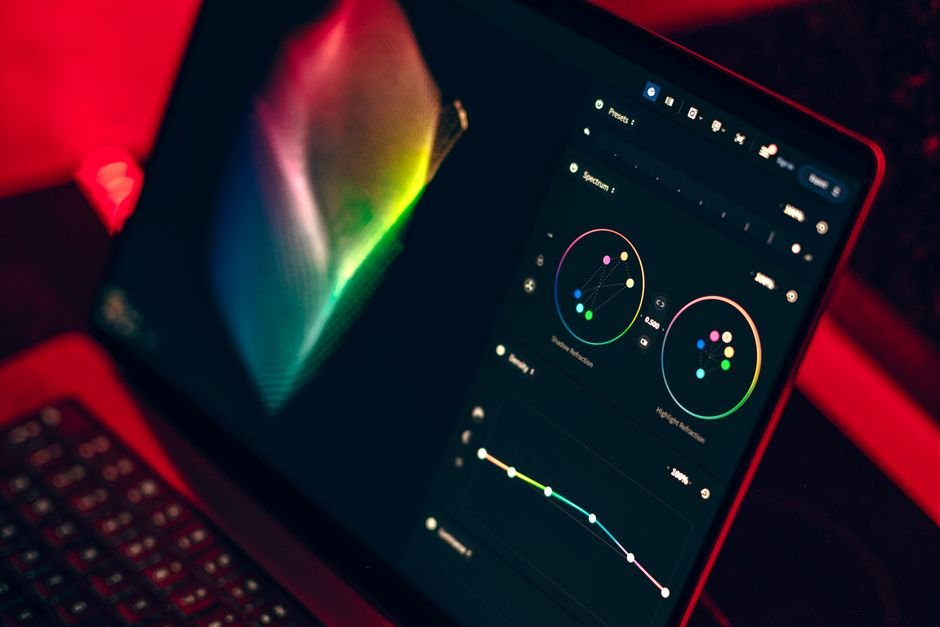
Modern product design moves at a breakneck speed, and top UI/UX design teams rely on Figma AI Workflows to streamline wireframing, design system management, and developer handoffs. Integrating artificial intelligence directly into vector design tools has changed how product designers explore creative concepts, reducing hours of repetitive manual adjustments down to a few context-aware prompt commands.
Whether you are building complex multi-platform design systems or prototyping early-stage mobile applications, adopting structured Figma AI Workflows accelerates creative output without sacrificing design accuracy or brand consistency. In this comprehensive guide published by One Code Stream, we break down actionable strategies, exact prompting workflows, and practical implementations to help you master AI-driven UI/UX design.
Understanding the Evolution of Figma AI Workflows
In traditional interface design, building wireframes, mapping out interactive prototypes, and populating screens with realistic test data consumed up to 60% of a designer’s production schedule. With the recent explosion of generative models and canvas-native AI engines, Figma AI Workflows have transformed traditional UI/UX design from manual pixel-pushing into intent-driven direction.
Rather than replacing the designer’s intuition, generative AI in vector editing interfaces acts as an intelligent assistant. It understands spatial hierarchy, auto-layout mechanics, padding parameters, and component variants. By recognizing design patterns, prompt engines can instantaneously lay out complex page hierarchies while maintaining underlying design system constraints.

To fully appreciate how far interface tooling has progressed, consider the core architectural shifts in design tools:
- Static Vector Editing: Manual construction of rectangles, text boxes, and pixel-locked layouts with zero structural awareness.
- Dynamic Layout Engine: Introduction of Auto Layout, CSS grid emulation, design tokens, and reactive component variants.
- Generative Canvas Assistance: Implementation of native AI prompt engines capable of parsing intent and auto-generating flexible layouts based on spatial context.
- Predictive System Governance: Modern AI models that automatically check contrast ratios, rename layers logically, enforce token usage, and convert designs into production code.
7 Steps to Master Figma AI Workflows for UI Design
To maximize efficiency, execution must be systematic. Simply typing generic prompts into AI tools yields generic, unusable layouts. Implementing these structured Figma AI Workflows ensures high structural fidelity, clean canvas organization, and complete alignment with industry UI standards.
1. Automated Wireframing and Layout Generation
Generating initial layout concepts is often the most time-consuming phase of early product design. With prompt-based visual generation, you can describe a full app flow or website section to instantly generate fully editable canvas objects utilizing Auto Layout.
When engineering prompts for page structures, focus on specifying context, structural hierarchy, and functional requirements. For example, instead of requesting “a dashboard page,” provide structured constraints:
// High-Yield Prompt Structure for AI Wireframing
Role: Lead Mobile Product Designer
Context: Fintech Analytics Mobile App
Screen: Investment Portfolio Overview
Elements Required:
  - Top bar with profile avatar, dynamic search, and notification icon
  - Hero card showing total portfolio balance with metric trends (+12.4%)
  - Horizontal scrolling category filter pills (Crypto, Stocks, Real Estate)
  - Vertical list of recent transaction items with merchant logo placeholders and amounts
Constraints: Mobile viewport (393px width), full Auto Layout support, scalable frame padding.
By providing explicit constraints, the generated output arrives organized in clean frames, pre-packaged with auto-layout constraints, responsive wrapping, and logical group hierarchies.
2. Optimizing Tokens with Figma AI Workflows
Design system adoption relies heavily on strict adherence to tokenization. detached styles or non-standard hex values create immense technical debt during front-end implementation. When applying Figma AI Workflows to design system management, AI agents can continuously scan artboards to map loose color and typography values directly to established library tokens.
For example, if an visual designer pastes a concept frame using custom background colors (e.g., #1E1E24), AI token mapping automatically evaluates your published variable library and maps that value to --color-bg-surface-dark or --sys-neutral-900. This automated translation preserves creative freedom while retaining design system integrity.
3. Instant Content Generation and Microcopy Localization
Using repeated placeholder text like “Lorem Ipsum” degrades usability testing and user research. Artificial intelligence natively handles realistic microcopy generation contextually tailored to your exact industry vertical.
Furthermore, localizing interface frames across multiple languages is a breeze. With contextual language models built directly into canvas workflows, selecting a complex checkout frame and prompting “Translate to Japanese, German, and Spanish while adjusting Auto Layout bounds for text expansion” instantly duplicates the artboard into fully localized variants, maintaining pixel-perfect spatial harmony across languages.
4. Automated Accessibility and Contrast Audits
Ensuring compliance with accessibility criteria should happen during concept design, not during late QA testing. Incorporating Figma AI Workflows into your accessibility checks guarantees that color contrast, target tap areas, and focus states satisfy Web Content Accessibility Guidelines (WCAG 2.1 AA Standards).
AI audit tools analyze visual contrast ratios between foreground text and underlying container backgrounds in real-time. If a light gray button text fails contrast requirements on a light background, the AI automatically suggests or applies the closest compliant token from your color palette, instantly fixing accessibility bugs without breaking visual balance.
5. Generative Asset Creation and Icon Vectorization
Searching through external icon repositories or manually drawing custom vector graphics slows down design momentum. Canvas AI tools let you generate unique, scalable vector icons and graphics directly on the design board using text prompts.
Ready to Build, Fix, or Scale Your Website?
One Code Stream engineers high-speed, conversion-focused websites, custom web applications, and e-commerce solutions for global businesses. Let’s turn your vision into measurable digital growth.
Because the generated assets are standard vector paths rather than flattened raster images, designers can alter stroke weights, corner radii, drop shadows, and fill properties effortlessly. Additionally, bitmap imagery placed on canvas can be isolated and vectorized automatically using image segmentation algorithms.
6. Rapid Interactive Prototyping and Logic Mapping
Connecting screens line-by-line in prototype mode can take hours for multi-screen flows. Generative AI drastically streamlines interactive wireframing by analyzing page visual hierarchy and inferring logical user paths.
Selecting a set of primary screens (e.g., Onboarding, Login, Dashboard, Account Settings) and invoking automated interaction creation automatically links primary call-to-action buttons to their corresponding target screens. It selects logical transition animations like ‘Slide In’, ‘Smart Animate’, or ‘Dissolve’ based on industry design guidelines.
7. Smart Design-to-Code Handoff Optimization
Front-end engineers often struggle with messy layers, unorganized auto-layout configurations, and ambiguous component properties. Front-end engineers benefit significantly from Figma AI Workflows during handoff because AI extensions clean up canvas structures before engineering review.
Pre-handoff AI agents automatically rename generic layers like “Frame 4082” into semantic identifiers such as “HeaderNavigationBar” or “ProductCardWrapper”. Moreover, AI algorithms analyze frame layouts to output clean React JSX, Tailwind CSS, or CSS Grid code blocks directly into Figma Dev Mode, drastically bridging the gap between visual design and software engineering.

Manual UI Methods vs Modern Figma AI Workflows
To quantify the concrete efficiency gains achieved by adopting modern creative automation, let us compare traditional design production against AI-accelerated workflows across key UI/UX development phases.
| Design Activity | Traditional Manual Workflow | Modern Figma AI Workflow | Productivity Gain |
|---|---|---|---|
| Initial Wireframing | Manual layout creation, drawing basic shapes, inserting dummy frames. | Contextual prompt-based spatial layout generation with Auto Layout. | ~75% Faster Execution |
| Microcopy & Mock Data | Copy-pasting ‘Lorem Ipsum’ or manually writing arbitrary test data. | Instant context-aware, industry-tailored copy generation and localization. | ~85% Faster Execution |
| Design System Mapping | Manual style inspector checks and detaching out-of-sync tokens. | Automated variable matching, token replacement, and style auditing. | ~60% Error Reduction |
| Accessibility Audits | Manual color contrast plugin runs for each individual frame. | Real-time continuous WCAG contrast and tap-target compliance checks. | ~90% Instant Coverage |
| Developer Handoff | Manual layer renaming, asset exporting, and spec annotation writing. | Automated semantic layer cleanup, layout structuring, and code snippets. | ~50% Friction Reduction |
Advanced Optimization Strategies for Product Teams
When scaling Figma AI Workflows across large enterprise product teams, simply using basic canvas prompts is not enough. You must establish organizational standards, custom prompt libraries, and strict component variable frameworks to maintain cross-team alignment.
Start by creating a centralized Prompt Library document within your team workspace. This document should define standardized prompt formats for common interface patterns, such as modal dialogs, data visualization cards, settings panels, and navigation drawers. By standardizing input structures, team members ensure predictable generative visual outputs that natively fit your existing product system.
“AI will not replace UI/UX designers, but designers who harness AI workflows will rapidly replace those who do not.”
Additionally, integrate AI workflows with specialized external design software tools via the official Figma Developer API. Automating design token updates from code repositories directly into your design system variables ensures that design and development always remain perfectly synchronized.
Common Pitfalls to Avoid When Scaling Figma AI Workflows
While artificial intelligence drastically boosts output speed, over-relying on automated design tools without critical human oversight introduces notable UX risks. Avoiding bottlenecks in your Figma AI Workflows requires strict governance and quality control.
- Ignoring Spatial Auto-Layout Nesting: AI tools sometimes nest unnecessary frames inside one another. Always inspect generated layers to eliminate excess structural wrapper frames.
- Over-Reliance on Default Visual Styles: Generative models draw inspiration from broad web data, which can lead to generic look-and-feels. Always refine generated wireframes to reflect your unique brand identity and design tokens.
- Blindly Accepting AI Microcopy: AI-generated text can introduce inaccuracies or off-brand tone. Always partner with product copywriters to review microcopy before finalizing UI designs.
- Neglecting Complex Edge Cases: Generative layouts excel at happy-path user flows but often omit error states, offline banners, or empty data states. Ensure human designers explicitly map out these edge scenarios.
Conclusion: The Future of AI-Driven Interface Design
Mastering Figma AI Workflows will keep your product design team ahead in a fast-evolving digital landscape. By automating time-consuming tasks like layout generation, text localization, token assignment, and accessibility auditing, designers can focus their talent where it matters most: solving core user problems and crafting memorable digital experiences.
Start implementing Figma AI Workflows today by integrating structured prompting, clean auto-layout structures, and automated design system checks into your daily creative process. Explore more technical development and design insights on One Code Stream to stay at the cutting edge of modern software development and design architecture.